Features
Not a feature list, but one task from start to finish
Create a connection, run a query, edit the result and check the status bar, in eight scenes. All eight are real screens, none of them scaled up or down.
01Connect
Start by creating a connection
Pick a DB type and enter the host, port and user. Two things are already decided here: where the password is stored and whether this is a production server.
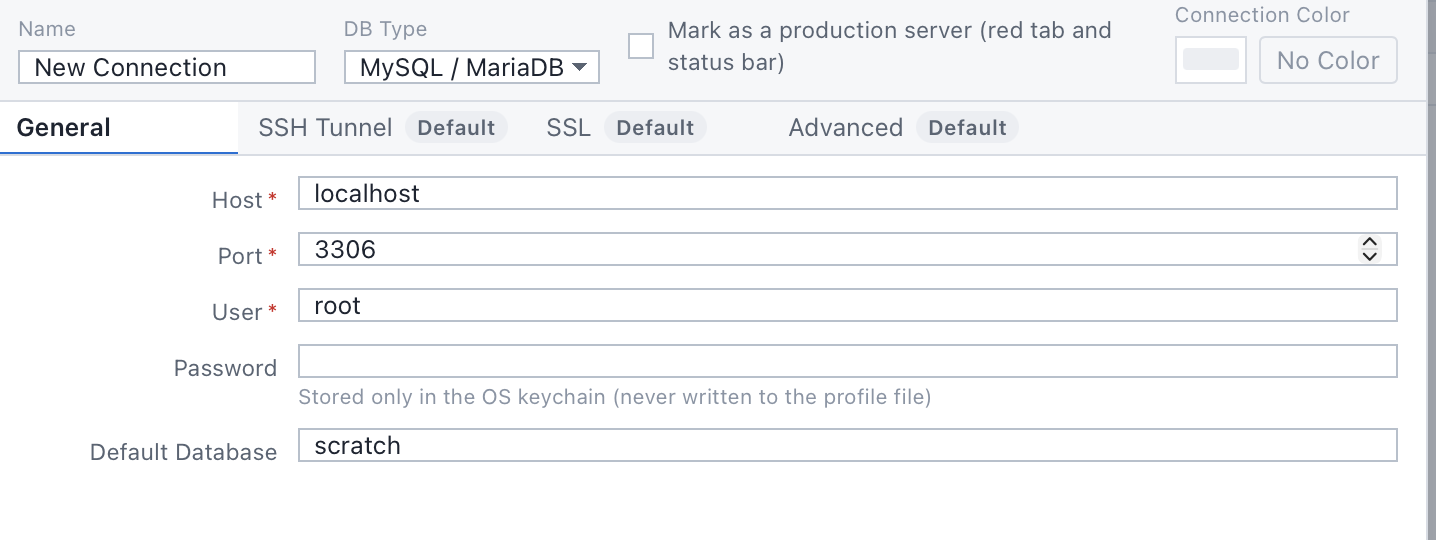
Passwords go only into the OS keychain
That means Keychain on macOS and Credential Manager on Windows. Passwords are never stored in plain text. Open the profile file and you won't find one.
Production servers look different
A connection marked as production shows a different tab and status bar, so you don't have to remember which server you're on.
Idle connections stay open
DBerio reads the server's wait_timeout and interactive_timeout and sends a ping at half that interval (between 15 and 60 seconds). It does not reconnect automatically, on purpose. Quietly reviving a dropped connection would silently lose any transaction that was open. If you need an SSH tunnel, set it up in the second tab of the same form.
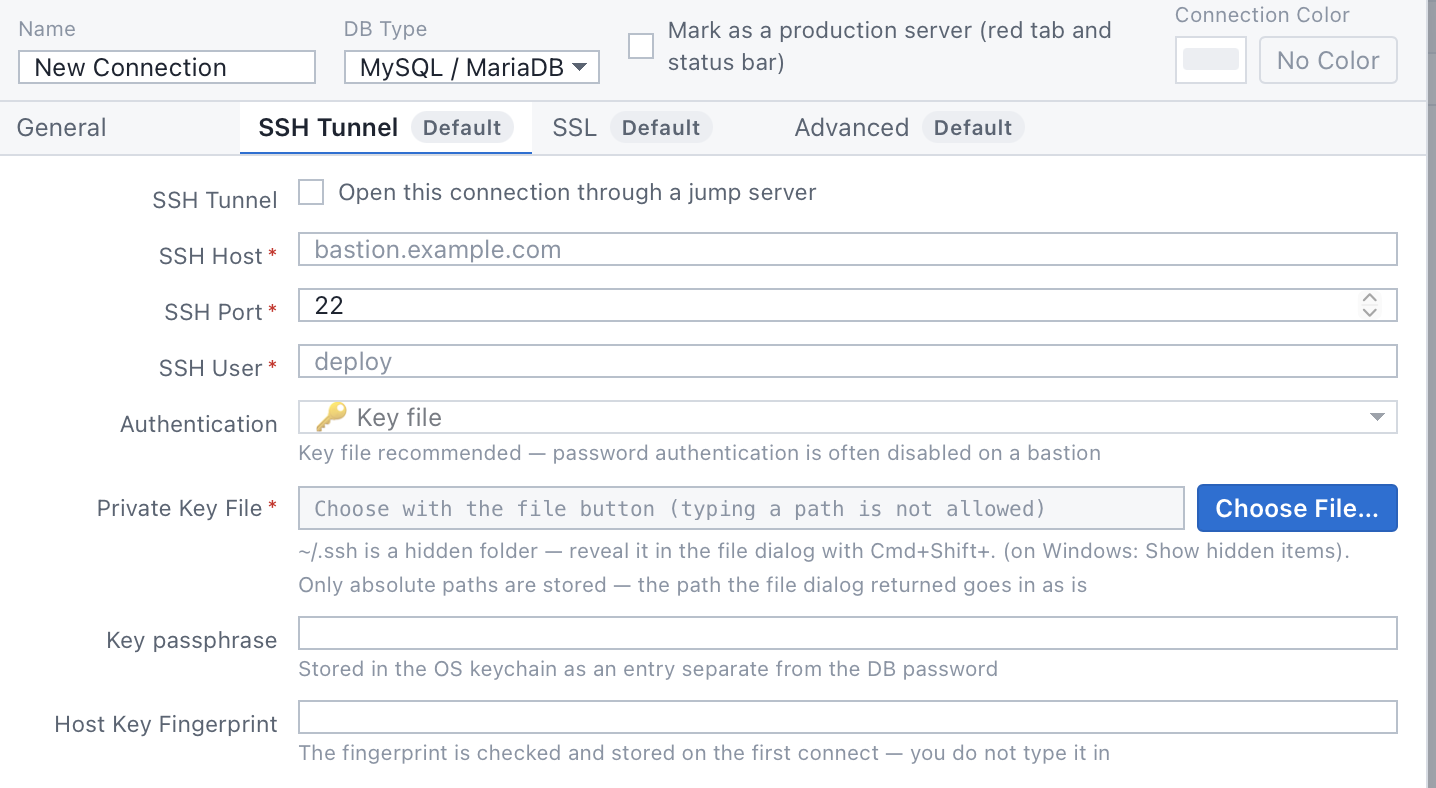
SSH tunnels are the second tab of the same form
Connections that go through a jump server are set up in the same place, with no extra tool. Like the connection form, the notes on this tab tell you what is stored where rather than just what to enter.
02capability
Once connected, the screen fits that DB
DBerio doesn't squeeze four kinds of database into one screen. When an adapter connects, it asks what this DB can do, and screen elements turn on or off based on the answer. That's why Redis opens a key browser instead of a query editor. Redis is a key-value store, not SQL.
| DB | Type | Where the screen differs |
|---|---|---|
| MySQL · MariaDB | SQL | Reference screen |
| PostgreSQL | SQL | DDL can be rolled back inside a transaction |
| SQLite | SQL | Changing a column type rebuilds the table, and there is no users and privileges screen |
| Redis | KV | Key browser, TTL and views for each value type. No query editor |
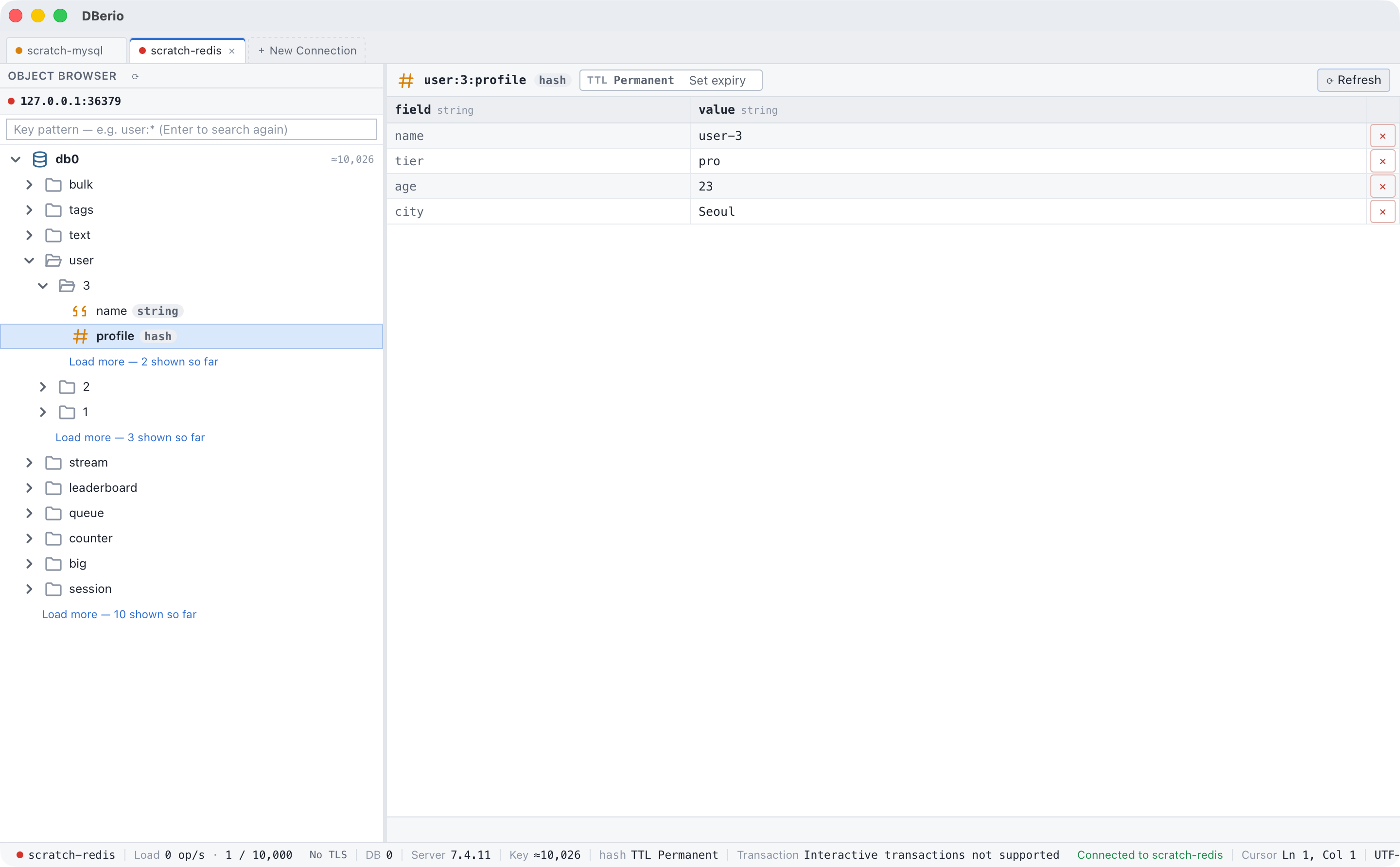
This is the whole window (1440×892). It isn't cropped so the status bar at the bottom stays visible. The image is shown at 1:1. On a narrow screen, scroll sideways inside the image.
It asks about screen elements, not labels
DBerio doesn't stick a broad label like “SQL or key-value” on a database. The UI only needs to know whether a given screen element makes sense, so capabilities are defined at that level.
| capability | What it asks |
|---|---|
transactional_ddl | Can DDL be rolled back inside a transaction? |
supports_interactive_transaction | Do autocommit, commit and rollback mean anything? |
supports_ttl | Is there a concept of TTL? |
supports_column_modify | Can an existing column's type be changed? |
supports_editable_resultset | Can F8 (editable results) be turned on? |
supports_multiple_result_sets | Can it return multiple result sets? |
supports_user_admin | Does a users and privileges screen apply? |
supports_schema_sync | Does a schema sync tool apply? |
value_types | Key-value types: String, Hash, List, Set, ZSet, Stream |
The only screens on this page are MySQL and Redis. There are no real captures of PostgreSQL or SQLite yet, so they aren't shown. Instead of drawing screens that don't exist or labeling other screens with their names, the table above describes them in words.
03Run
Three run keys, each with its own meaning
The point isn't that there are three keys. The point is that you choose what kind of result you get back for the same query. And that promise is written in small print under each button, not in a manual.

- F9 ExecuteOne query at the cursor · read-only
- F8 Execute (Editable)Same query · asks for an editable result
- Ctrl+F9 Execute SelectionSelection only · does nothing without one
The default is the safe option
F9 runs only the statement under the cursor, and the result is read-only. A LIMIT 1000 is added by default, and one extra row is read to tell whether there's more. You won't pull in ten million rows by accident. If you run the wrong thing, you can stop it without dropping the session. Query cancellation is a required part of the contract for every adapter.
With a selection, the third button tells you so

The image above is at its original size (1044×112). On a narrow screen, scroll sideways inside the image.
Tabs don't pile up
F9 and F8reuse the same result tab. You don't get a new tab every time you run a query.
04Results
Results tell you their own state
This result came from F9. The header already says Read-only (F9) · F8 to edit. Editing actions are turned off for the same reason. You won't have to click around to figure out why something doesn't work.
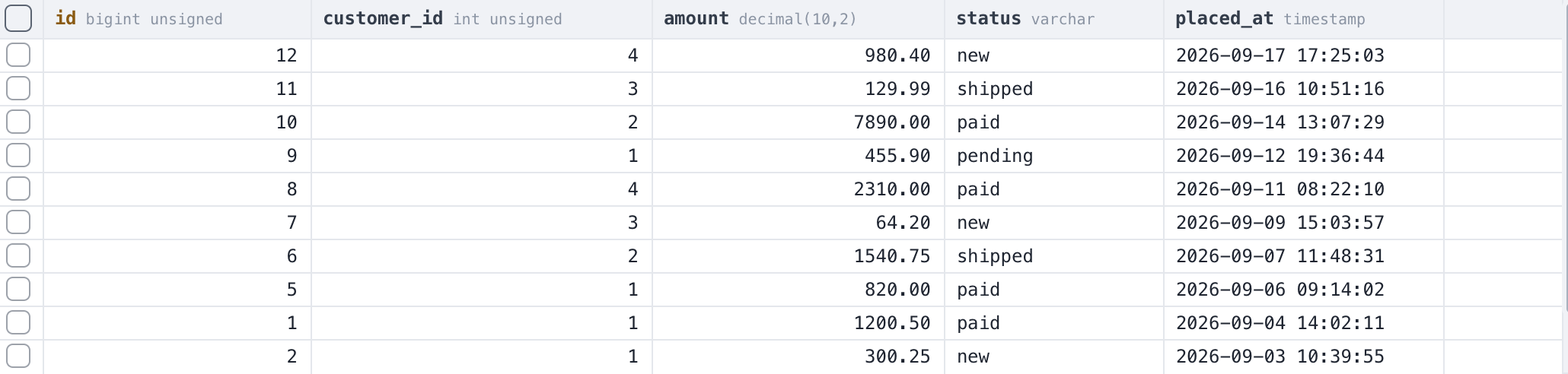
amount decimal(10,2). No need to count whether there are two decimal places or four. You can also see that the rows are sorted by placed_at, not id. The query ran with F9, so the result is read-only.The image above is at its original size (1030×246). On a narrow screen, scroll sideways inside the image.
Why editing is off is defined as a type
That's why the screen never gives a vague answer. When editing is off, it's for one of the five reasons below, and the reason is shown as is.
| Reason | What it means |
|---|---|
| Not requested | Ran with F9. An editable result wasn't requested |
| Not supported by adapter | This DB's adapter doesn't support editable result sets |
| No source table | Only expressions or aggregates, so there's nowhere to write back |
| Multiple tables | It's a JOIN result, so there's no way to decide which table to update |
| Same source column twice | It's a self-join. This prevents the wrong row from being updated without notice |
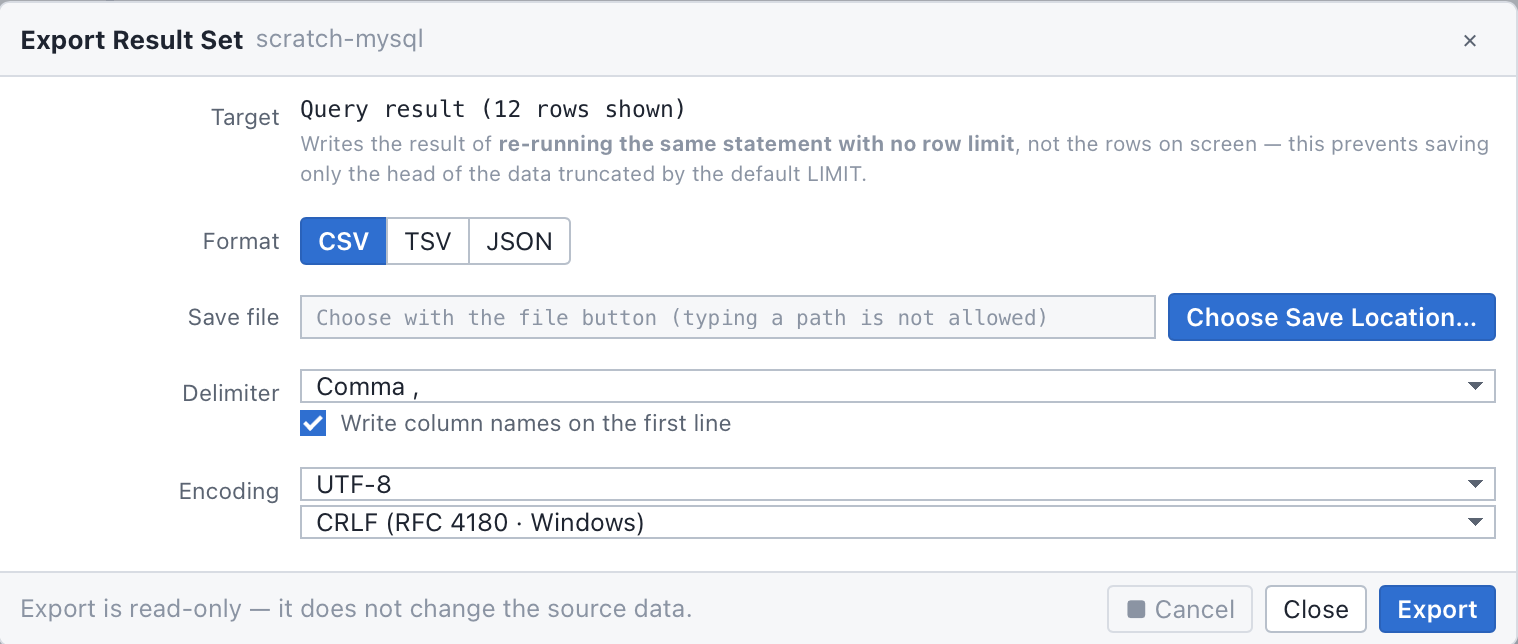
Export re-runs the query instead of saving the rows on screen
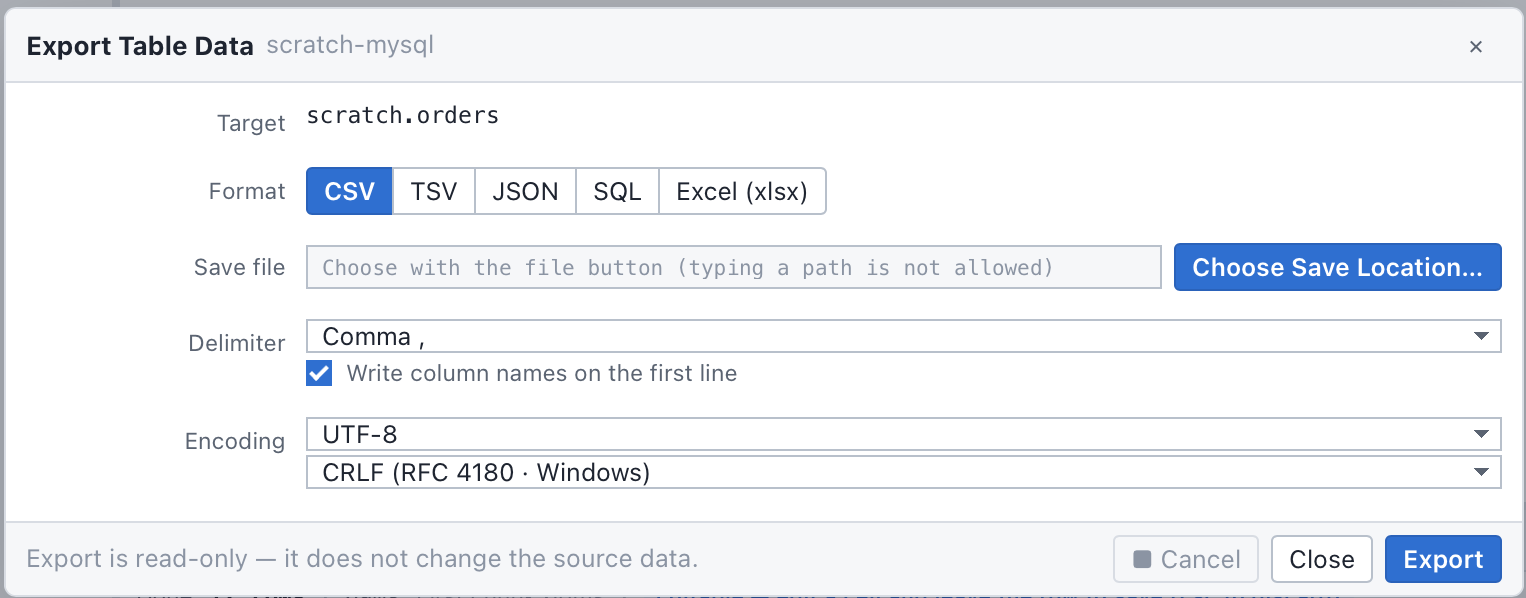
This matters. Normal runs have a row limit, so saving the rows on screen would give you only the first part of the data. Export runs the same statement again without the limit.
05Edit
Press F8 only when you mean to edit
Run the same statement again with F8 and the result mode changes. So does the header.
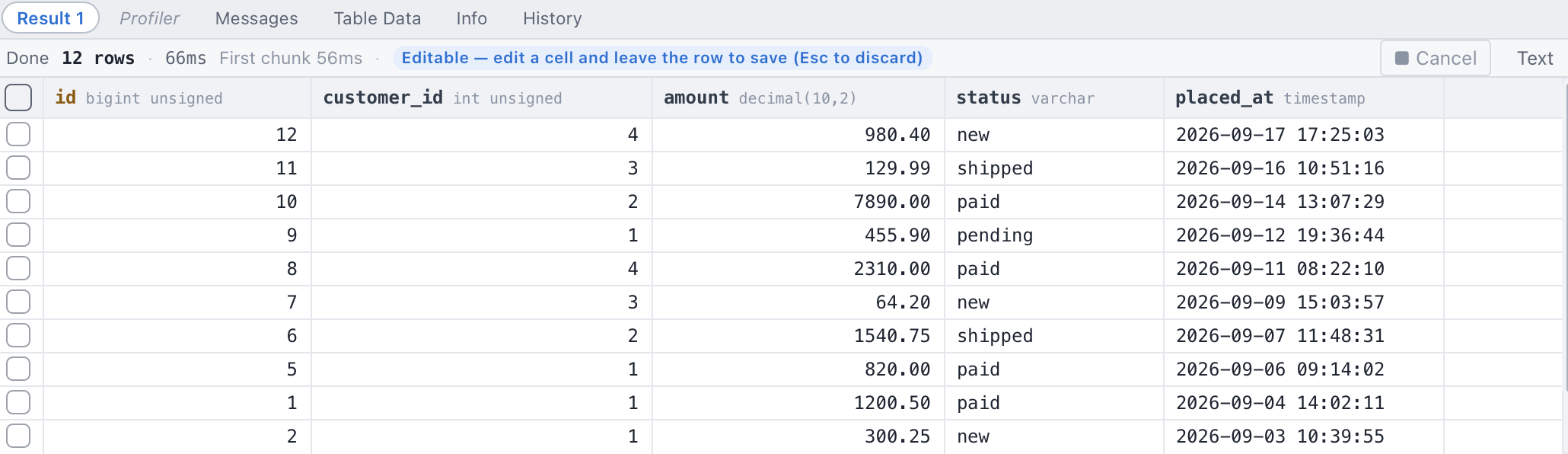
The image above is at its original size (1030×298). On a narrow screen, scroll sideways inside the image.
This one extra step is the reason the product exists
Since editing needs its own key, there's no default path that changes production data by accident. For people who use a DB client all day, defaults like this matter more than the number of features.
06Status bar
The status bar covers the rest
The result header is about “this run”. The status bar is about “this window right now”. It shows the connection state, the selection, the cursor position and the encoding.

07Shortcuts
Every key used so far comes from one contract file
Key bindings come from a single source, docs/keymap-contract.json (v0.7). Writing shortcuts directly into components is not allowed, and an audit checks the contract against the code automatically. The keys match because they're checked, not because someone lined them up by hand.
For you, that means three things: shortcuts are the same on every OS, all of them can be changed (including JSON export), and they don't change between versions.
| Item | Value |
|---|---|
| Actions | 102 (number of actions) |
| Key combinations | Windows 114, macOS 126 |
| Scopes | global 66 · editor 19 · grid 9 · browser 6 · dialog 2 |
| Categories | editor 18 · schema 18 · result 12 · connection 9 · common 9 · browser 6 · powertool 5 · tools 5 · statement 4 · query 3 · format 3 · panel 3 · user 3 · app 3 · favorites 1 |
This is everything that changes on macOS
The rule is to keep Ctrl combinations working on macOS too. Where they clash with keys reserved by the OS, the Windows key is kept and an alternative key is added. Of the 102 actions, 13 have different keys on macOS, and 12 of those simply add a Cmd combination while keeping the Windows key. The only Windows key that's gone is Quit. Alt+F4 doesn't exist on macOS, so it became Cmd+Q.
| Action | Windows | macOS | Why |
|---|---|---|---|
| Autocomplete | Ctrl+Space | Ctrl+Space · Option+Esc | On macOS, Ctrl+Space is used to switch input sources |
| Insert/Update dialog | F11 | F11 · Cmd+F11 | F11 is the system's “Show Desktop” key |
| Close tab | Alt+L | Alt+L · Cmd+W | macOS convention, and it keeps this separate from disconnecting |
| Copy, paste, save, find, undo | Ctrl+… | Ctrl+… · Cmd+… | Common editing actions also accept the Cmd combination |
| Quit | Alt+F4 | Cmd+Q | The only action where the Windows key was replaced |
One thing to know up front. On macOS, F1 to F12 act as media keys by default. To use F9, F8 and F12, turn on “Use F1, F2, etc. keys as standard function keys” in System Settings.
The first-run guide points out this setting, and combinations with Fn also work.
08One window
Everything so far is part of one window
The result header (04), the grid (05) and the status bar (06) aren't separate screens. Below is the bottom half of the main window, cropped straight from the original, showing how the three fit together.
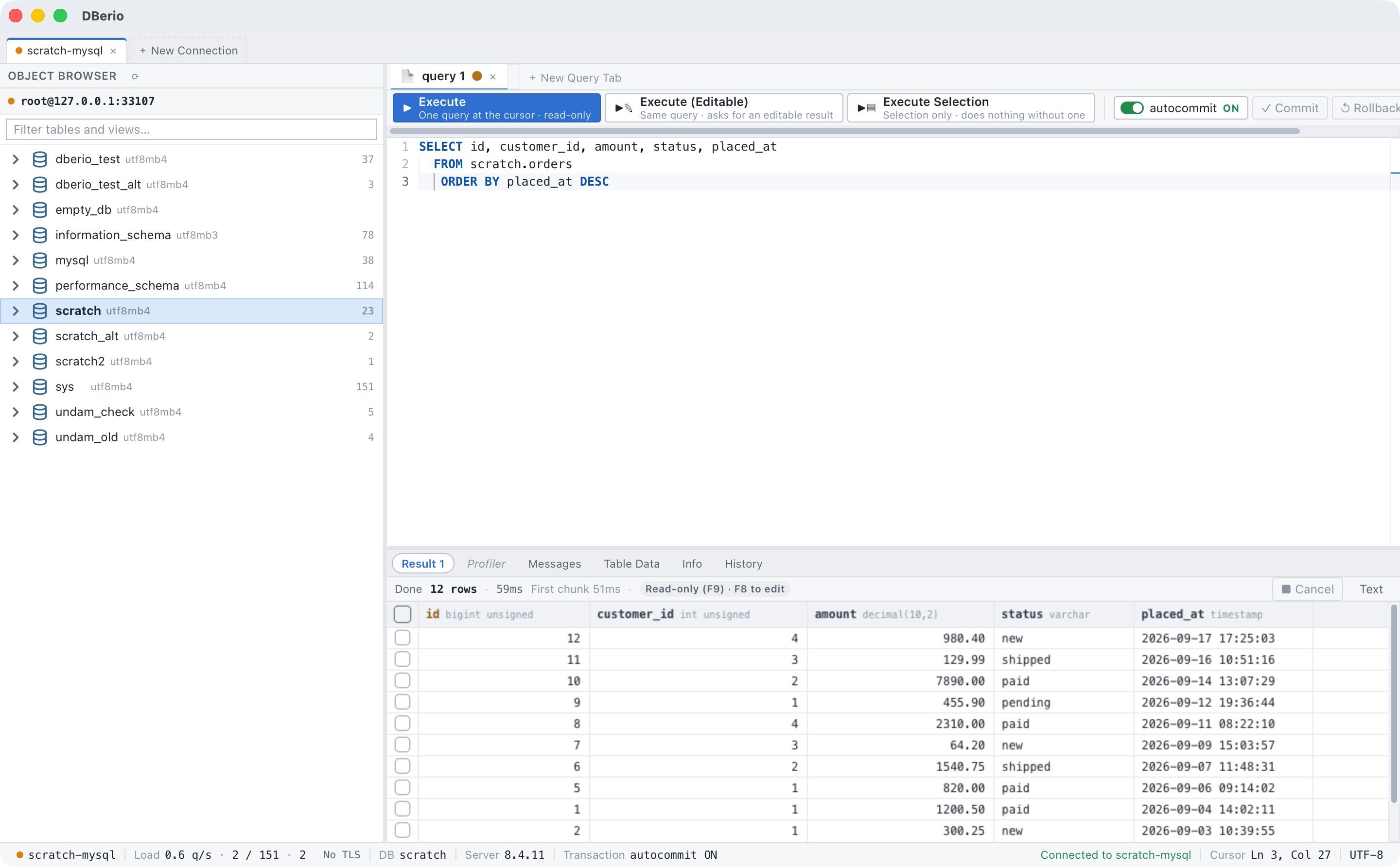
Cropped from the original 1440×892 below y=562. The cut is at the border between the editor and the result panel, so it ends at a panel edge rather than halfway through a row. The image is shown at 1:1. On a narrow screen, scroll sideways inside the image.
One filter box finds everything on the left
Above the cropped area, on the left, is the Object Browser. The filter doesn't search only tables. The same text also finds views, procedures and triggers.
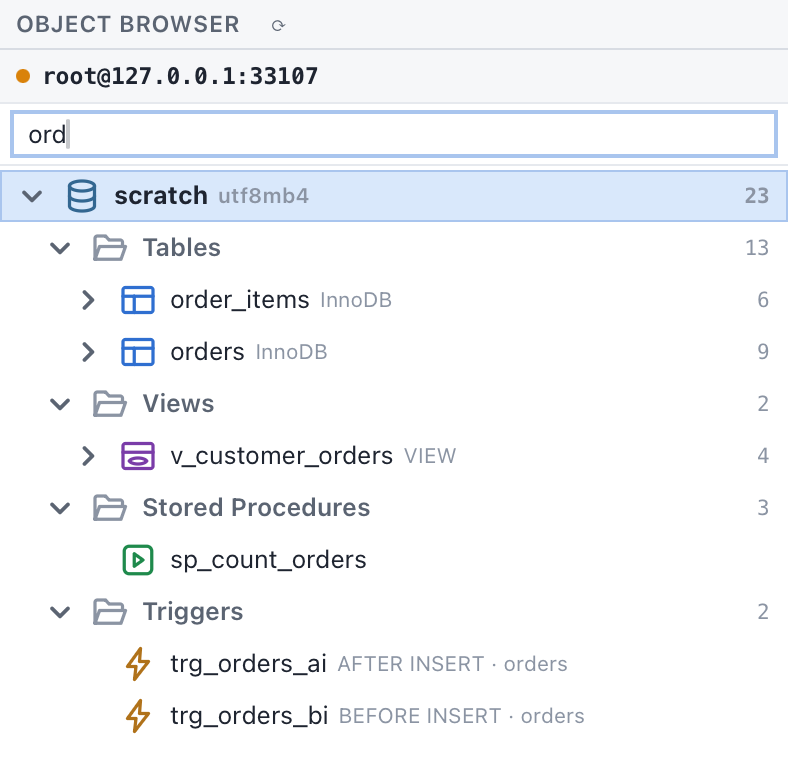
The rest of the window
Tabs come in three levels: connection tabs, query tabs and result tabs. There are also a connection manager, a table structure editor (columns, indexes, foreign keys, options and SQL preview) and a users and privileges screen.
EndBuild
Even error messages are in your language
The app is available in three languages: Korean, English and Japanese. Switch with Alt+Shift+L inside the app. Each language has the same 1,499 translated strings.
Many tools translate only the interface and show server or engine errors in English. Here, the backend sends a template and its values instead of a finished sentence, so the error message itself is built in your language. Messages from the server itself (MySQL or PostgreSQL error text) are shown as they are. Those aren't ours to translate.
What it's built with
| Layer | Details |
|---|---|
| Shell | Built with Tauri 2, using the OS web view instead of Electron. That's WebView2 on Windows and WKWebView on macOS. |
| Backend | Rust (mysql_async, tokio-postgres, russh, keyring) |
| Frontend | React 19, TypeScript, the Monaco editor, Glide Data Grid and Zustand |
| IPC types | TypeScript types are generated from the Rust definitions, not kept in sync by hand |
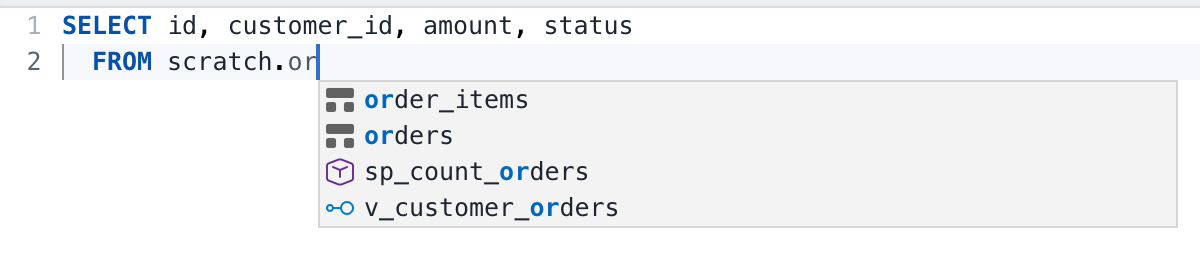
The editor is Monaco. It reads the schema for autocomplete, and its built-in keys are synced with the same keymap registry. Export formats depend on where you start the export: table data supports CSV, TSV, JSON, SQL and Excel (xlsx), and result sets support CSV, TSV and JSON. Database connections and license checks run inside the compiled Rust binary. There is no license logic in the frontend JS.
There are no “X times faster” numbers here because we haven't measured anything. We haven't measured memory use, startup time or query speed. All we can say for now is the structural fact that it's a native app using the OS web view.